Compliance & operations
Review compliance coverage and trends
Generate a Secorvia compliance snapshot, review framework coverage, and investigate controls through their supporting findings.
Reviewed
Before you start
Your organization needs scan results and access to Compliance. A trend needs more than one historical snapshot.
Open Compliance and generate a snapshot
Open Compliance under Overview and use the snapshot-generation action. A snapshot evaluates the available findings and mappings; it is not a certification or a replacement for an audit.
- Generate Snapshot
Evaluate the available findings and mappings. A snapshot is an assessment record, not a certification.
Product recording: coverage is shown separately for each framework.
Read each framework separately
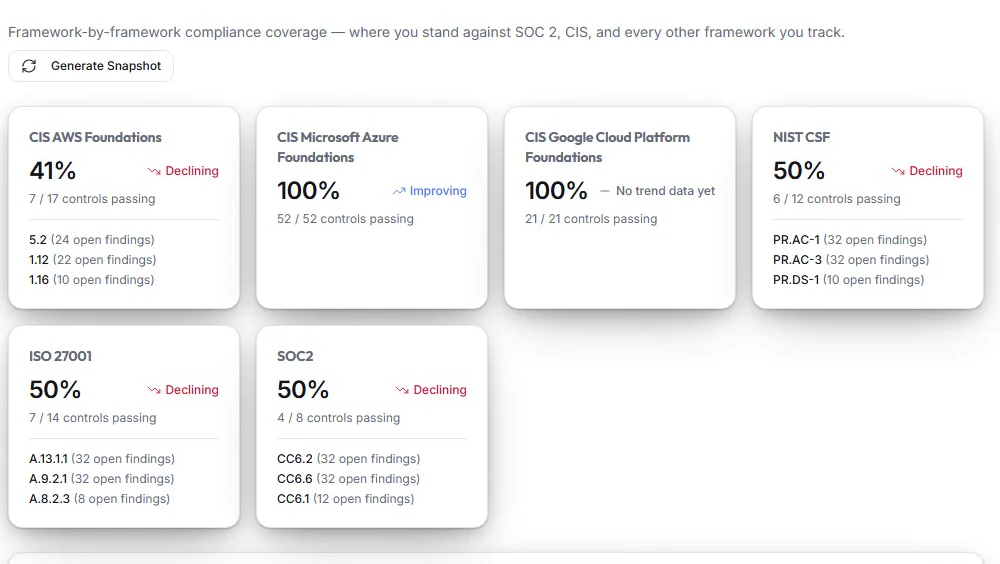
Review passing and failing controls for the displayed framework cards. The recorded product includes CIS AWS, Azure and GCP Foundations, NIST CSF, ISO 27001, and SOC 2. Read the actual framework set in your deployment and inspect the controls behind a percentage.
- CIS AWS Foundations
Read both the percentage and controls passing. Here 7 of 17 controls pass; open findings appear against individual controls.
- Azure and GCP frameworks
Each cloud has its own evaluated controls. A displayed 100% applies to that framework and the assessed scope.
- NIST CSF
Compare coverage within this framework rather than treating different control totals as equivalent.
- ISO 27001 and SOC 2
Read their coverage and control references separately. One underlying finding may affect several frameworks.
Product recording: coverage is shown separately for each framework.
Investigate the findings behind a control
Use the control/finding detail available in the framework view and review Compliance impact on an individual finding. A single security condition can map to several frameworks. Remediate the underlying condition and verify it with a scan.
- Control references and open findings
Start with the affected control and its open-finding count, then inspect the supporting findings in the app.
- The same workflow in another framework
SOC 2 also lists control references with open findings. Check the underlying condition before counting it as a separate issue.
The cards show control references and counts. Control detail and an individual finding’s Compliance impact are not pictured.
Product recording: coverage is shown separately for each framework.
Use the coverage trend
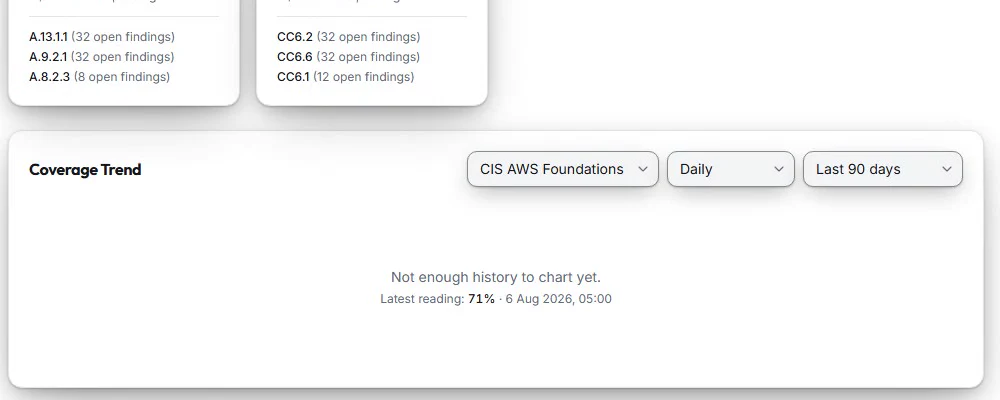
Select a framework, interval, and date range under Coverage Trend. If there is not enough history, collect additional snapshots before making a trend claim. Keep the same framework and interval when comparing periods.
- Framework
Choose the framework to compare over time. Keep it consistent when comparing periods.
- Interval
Select the interval, such as Daily, for the coverage history.
- Date range
Choose a period with enough snapshots to support the comparison.
- Not enough history
This message means a trend cannot yet be drawn. Collect more snapshots; a latest reading alone is not a trend.
Product recording: the trend is empty when there is not enough snapshot history.
Prepare evidence for review
Generate the appropriate report from Reports and include the assessment scope and period. Review failed controls and missing evidence with the responsible team rather than treating a headline percentage as complete assurance.
Where you are now
You can connect a framework percentage to evaluated controls, findings, and a dated snapshot.
WHEN SOMETHING LOOKS OFF
A few things to check
No coverage data yet
Generate a snapshot after scans have produced results.
Not enough history to chart
More snapshots are required; a single snapshot cannot show a reliable time trend.
PUT IT INTO PRACTICE
Make your next move in Secorvia.
Open the app and follow along with your own organization.