Getting started
Read your security dashboard
Understand Secorvia dashboard findings, exposure, identity risk, scan coverage, and the next action to take.
Reviewed
Before you start
Connect at least one account and allow a scan to complete. Some panels need a graph analysis or compliance snapshot as well.
Start with findings and exposure
Read Critical Findings and High Findings. Use their review links to open the findings list. Internet Exposure adds reachability context; Identity Risk points toward entitlements analysis. These are different signals, not interchangeable scores.
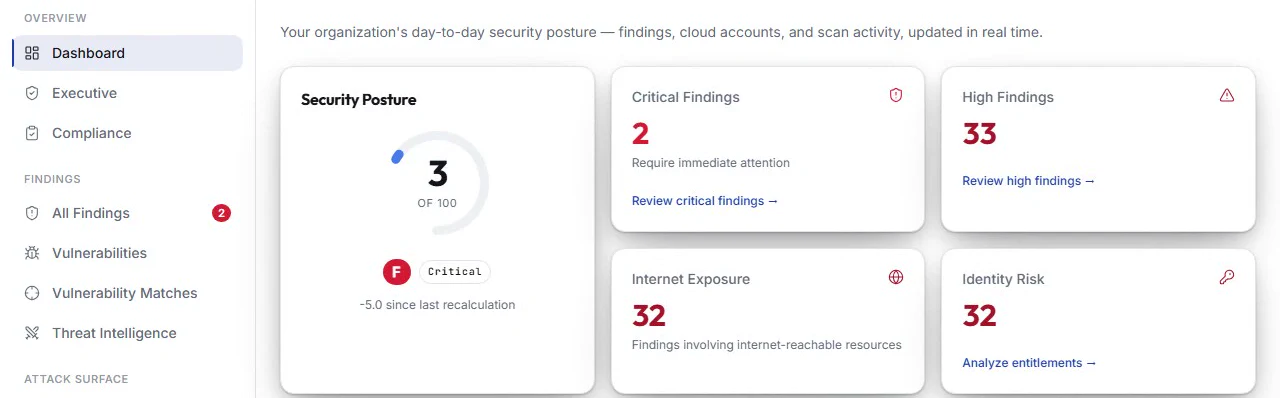
- Critical Findings
Start with urgent findings. Review critical findings opens the underlying findings list.
- High Findings
Review high-severity findings next. This count is separate from critical findings.
- Internet Exposure
Read the number of findings involving internet-reachable resources. Reachability adds context to severity.
- Identity Risk
Use Analyze entitlements to investigate identity permissions in CIEM.
Product recording: the operational dashboard. Figures illustrate the recorded workspace, not your account.
Check how much has been assessed
Review Scan Coverage, the last scan, and account connection state. Old results describe the last assessment. A low finding count after a failed or partial collection is not evidence that every resource is secure.
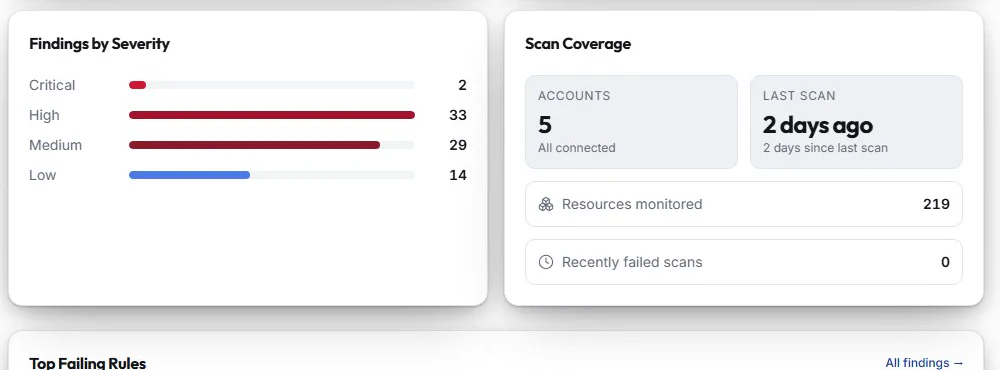
- Accounts
Check how many accounts are connected. A connection alone does not prove that collection finished.
- Last scan
Check the age of the most recent assessment before using its results.
- Resources monitored
Use this count to understand the assessed inventory, rather than assuming every resource is included.
- Recently failed scans
Investigate failed scans in Scan History. Missing collection can make a findings count misleading.
Product recording: check scan coverage before interpreting the findings count.
Follow the investigation links
Use Top Attack Paths to move into graph analysis, View all frameworks for compliance, and Analyze entitlements for CIEM. If no attack paths or compliance snapshot exists, run the corresponding analysis instead of treating the empty panel as a pass.

- Open Security Graph
Open the graph investigation from Top Attack Paths. The current navigation calls this feature Graph Explorer.
- View all frameworks
Open Compliance to inspect individual frameworks and their evaluated controls.
Product recording: dashboard investigation links. Resource descriptions below these headings are excluded.
- Analyze entitlements
Open CIEM from the Identity Risk card to investigate effective permissions.
Product recording: the operational dashboard. Figures illustrate the recorded workspace, not your account.
Choose a resource-level action
Open a high-priority finding, inspect its evidence, and identify the accountable team. Use the finding record for assignment and investigation notes so the dashboard summary leads to a traceable remediation action.
- Review critical findings
Start here to reach the findings list, then open the relevant finding to inspect its evidence and owner.
The highlighted link starts the investigation. Finding details, assignment, and notes are on subsequent screens, not pictured here.
Product recording: the operational dashboard. Figures illustrate the recorded workspace, not your account.
Where you are now
You can distinguish urgent findings from missing or stale assessment data and open the right investigation view.
WHEN SOMETHING LOOKS OFF
A few things to check
No compliance snapshot yet
Open Compliance and generate a snapshot.
No attack paths identified
Check whether an analysis has run against a built security graph; the panel alone does not establish complete reachability coverage.
PUT IT INTO PRACTICE
Make your next move in Secorvia.
Open the app and follow along with your own organization.