Getting started
Sign in and activate your account
Activate a Secorvia invitation, sign in with email and password, and recover access when you cannot sign in.
Reviewed
Before you start
Have the email address associated with your Secorvia organization. A new member needs the invitation email sent by their organization.
Activate an invited account
Open the activation link from your invitation email. On Activate your account, enter Password and Confirm password, then complete activation. An activation link without its token cannot be used; ask the inviter to send a new invitation.
Enter your email and password
Open the Secorvia app. Enter the address attached to your account under Email, enter your Password, and select Sign in. The eye control lets you check a password while typing.
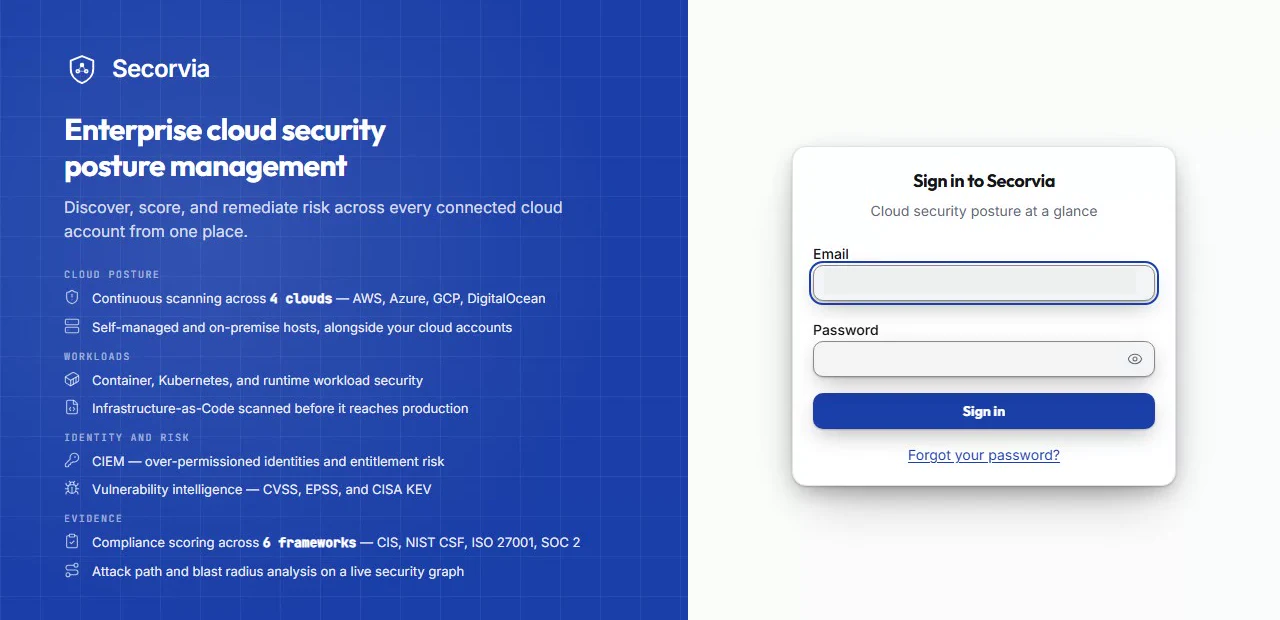
- Email
Enter the email address attached to your Secorvia account. The recorded address has been removed for privacy.
- Password
Enter your password. The eye control at the right lets you check what you typed.
- Sign in
Select Sign in after completing both fields. An invited account must be activated first.
Product recording: the sign-in form. The email address has been removed.
Check your organization and dashboard
After signing in, open Dashboard. If the app reports No organization found, your account needs an organization membership before you can work with cloud accounts and findings.
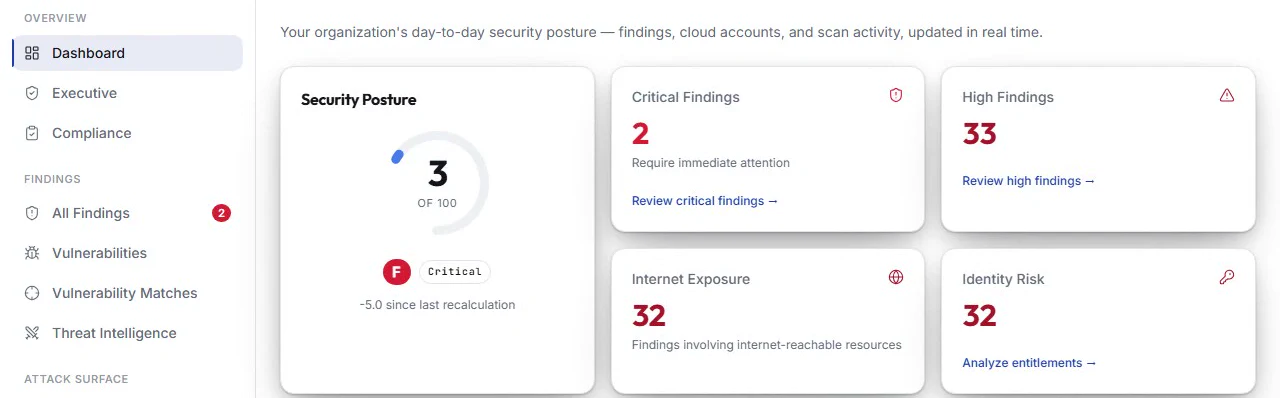
- Dashboard
Open Dashboard from Overview after signing in. This capture shows a workspace with scan results.
- Security Posture
A dashboard summary is available after successful access. Your organization and values will differ from this recording.
The account header is cropped for privacy. This image does not show the organization selector or the No organization found error.
Product recording: the operational dashboard. Figures illustrate the recorded workspace, not your account.
Reset a forgotten password
Select Forgot your password? on the sign-in page and submit your email address. If that address is registered, a reset link is sent. Follow it, set a new password, and sign in again. Completing a reset signs out existing sessions.
- Forgot your password?
Select this link to begin recovery, then enter your account email on the next screen.
This screenshot shows the recovery entry point. The email request and password-reset forms are not shown.
Product recording: the sign-in form. The email address has been removed.
Where you are now
You can open your organization dashboard and navigate to the features available to your account.
WHEN SOMETHING LOOKS OFF
A few things to check
No reset email arrived
Check spam and confirm you used the address attached to your account. The confirmation message deliberately does not reveal whether an address is registered.
Activation link is missing its token
Use the complete invitation link or ask the organization administrator for a new invitation.
PUT IT INTO PRACTICE
Make your next move in Secorvia.
Open the app and follow along with your own organization.