Getting started
Review the executive dashboard
Use Secorvia Executive to review risk trends, remediation performance, cloud coverage, and compliance for leadership reporting.
Reviewed
Before you start
Scan data is required for useful metrics. Historical comparisons also need findings and snapshots across the selected period.
Open Executive and choose a time interval
Open Executive under Overview. Choose the available Daily, Weekly, or Monthly interval for the question you are answering. Keep the same range when comparing findings, remediation, and compliance.
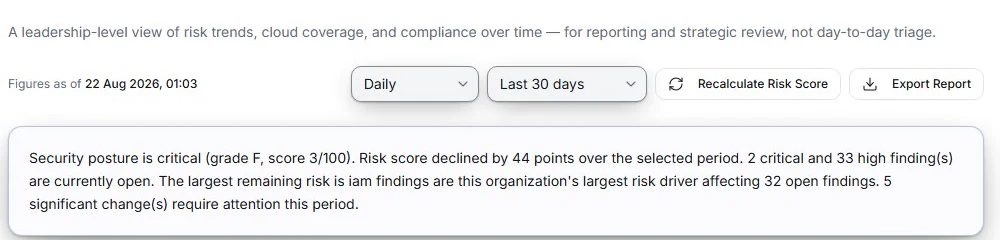
- Figures as of
Read the data timestamp so the review states when these figures were calculated.
- Interval
Choose the interval for the review. Daily is selected in the recording.
- Date range
Keep the same reporting range when comparing findings, remediation, and compliance.
Product recording: the reporting interval and date range apply to the leadership review.
Read posture alongside open work
Review Overall Risk Score, Critical Exposure, Open Findings, Remediation Velocity, and Compliance Score. Follow View findings or View compliance to investigate the records behind a summary.
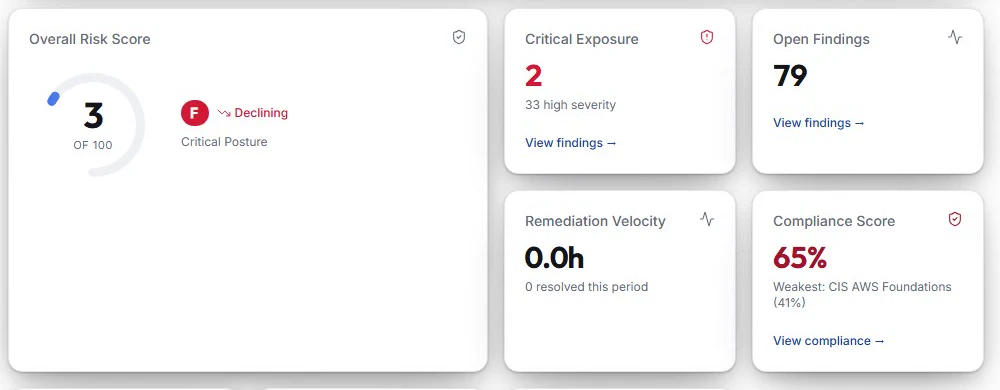
- Overall Risk Score
Read the score and posture grade alongside the recorded change; the score is a summary, not a finding count.
- Critical Exposure
Check the critical and high-severity context. View findings opens the underlying work.
- Open Findings
Read the outstanding finding count separately from the posture score.
- Remediation Velocity
Read the duration together with the resolved count. Zero resolved findings does not establish fast remediation.
- Compliance Score
Check the weakest framework and use View compliance to inspect coverage in more detail.
Product recording: leadership metrics. Example values describe the recorded workspace only.
Check coverage and remediation context
Compare cloud coverage, assets protected, last successful scan, and last failed scan. Read resolved findings, mean and median time to remediate, and overdue work together. A zero remediation duration with no resolved findings does not establish rapid remediation.
Explain the scope of attack-path metrics
The current interface derives internet-exposed and crown-jewel counts from attack-path entry points and targets. Resources without a current path are not counted in those metrics. Include that scope when sharing the result, and use Reports for a downloadable artifact.
Where you are now
Your leadership review connects trends to their reporting period, assessment coverage, and actionable records.
WHEN SOMETHING LOOKS OFF
A few things to check
No significant risks in the range
Check scan coverage and widen the period before concluding there was no activity.
No compliance data
Generate a compliance snapshot and allow history to accumulate for trends.
PUT IT INTO PRACTICE
Make your next move in Secorvia.
Open the app and follow along with your own organization.